Shift goes into alpha.
Shift is a free, open-source font editor for macOS, Windows, and Linux. Version 0.1.1 is the first alpha release.
This is early software. Work on copies of your fonts, keep independent backups, and expect workflows and document details to change.
Open and browse
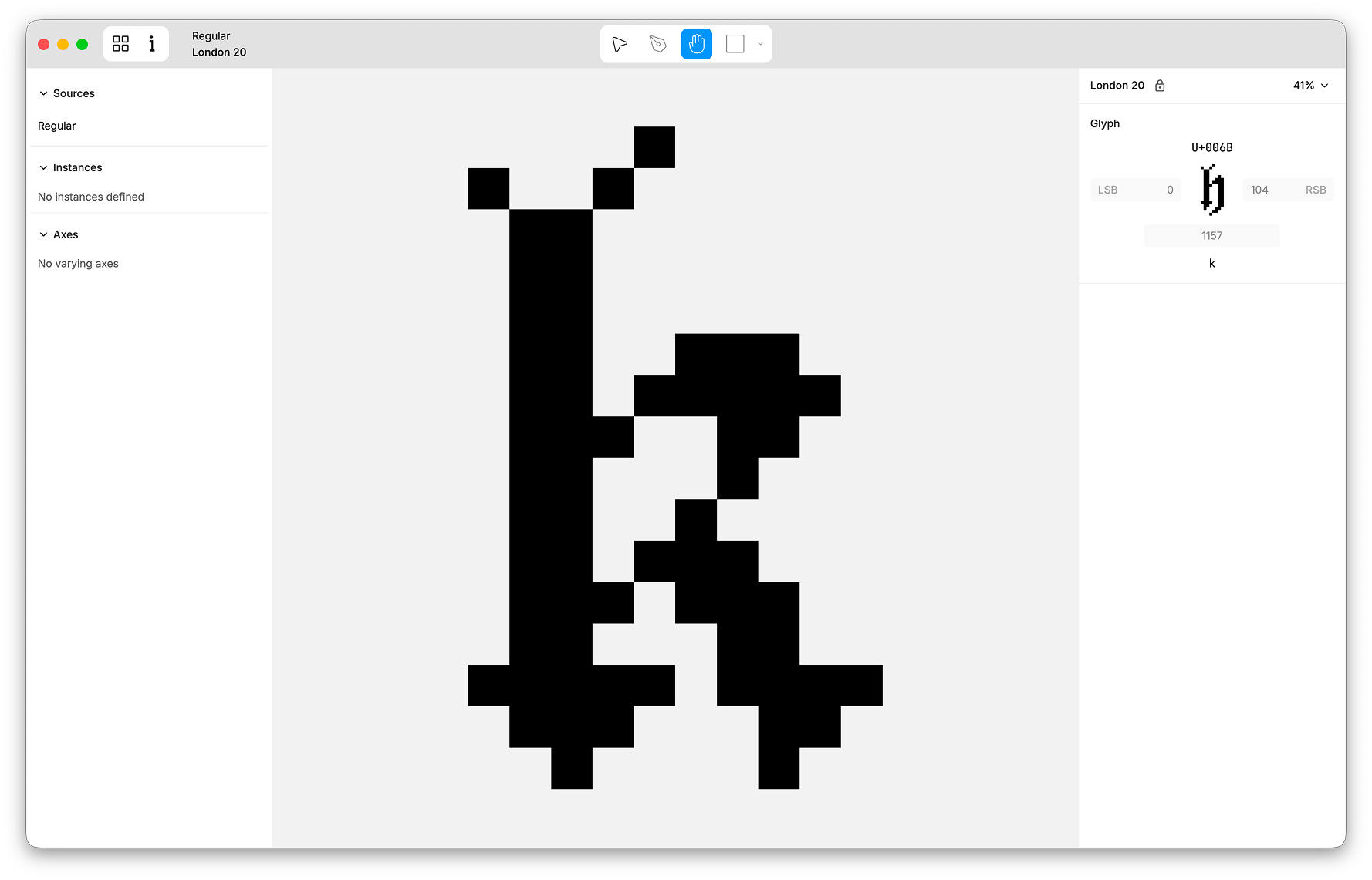
Start a new font, open a .shift document, or inspect an existing TTF, OTF, UFO, Designspace, Glyphs, or Glyphspackage source. Browse by category, search the glyph catalog, and open any glyph to inspect its outlines and metrics.
Files other than .shift initially open as read-only previews. For supported source formats such as UFO, Designspace, and Glyphs, choose Save as Shift to create an independent Shift document before editing. Compiled TTF and OTF files remain view-only.
Draw and edit curves
Use the Pen tool to draw straight and cubic segments, continue or close contours, and shape smooth joins. Add rectangles and ellipses, insert points into existing segments, bend curves directly, and toggle points between smooth and corner behavior. Select a handle to set its exact angle and length in the Handle section of the sidebar, and adjust side bearings and advance width in the Glyph panel.
Deleting a point normally refits the surrounding curve instead of simply breaking the contour. Hold Shift while pressing Delete or Backspace when you intentionally want to leave a gap. Undo and Redo preserve these edits as complete operations.
Transform and combine shapes
Move, resize, rotate, and flip selections on the canvas or enter precise position and dimension values in the sidebar. Constrain transforms with Shift, resize around the selected origin with Alt, and use the alignment and distribution actions to clean up geometry.
For closed contours, Shift also provides Union, Intersect, and Subtract. You can use Copy, Paste, and Duplicate between glyphs, or paste compatible SVG outlines from design tools.
Build with components
Choose Glyph → Add Component…, press Cmd+Shift+C (Ctrl+Shift+C on Windows and Linux), or right-click the canvas to open the component picker. Search by glyph name, character, or Unicode value; related glyphs such as the parts of an accented letter are listed first. If the glyph you need does not exist yet, Shift offers to create it.
Components can be selected, moved, nudged, scaled, rotated, flipped, aligned, and deleted like any other selection, or decomposed into editable outlines. The Objects sidebar lists every contour, anchor, and component in the glyph so you can select or remove them directly.
Explore variable fonts
Move through the design space and watch glyphs update in both the editor and catalog. Scrub an axis, choose a named instance, or select an exact source to inspect and edit its authored geometry.
In a Shift document, Settings lets you create and edit axes, sources, mappings, style labels, and named instances. Sources contain editable master geometry; interpolated positions are previews between those sources, not extra masters that can be edited accidentally.
Plan language coverage
The glyph catalog's Languages section tracks which languages your font supports, using Hyperglot language data. Choose Add languages, pick the scripts you are designing for, and each language shows how many of its required characters are present. Click a language to filter the catalog to its glyphs, or right-click it to review the missing characters and Generate them as empty glyphs.
Themes and launcher
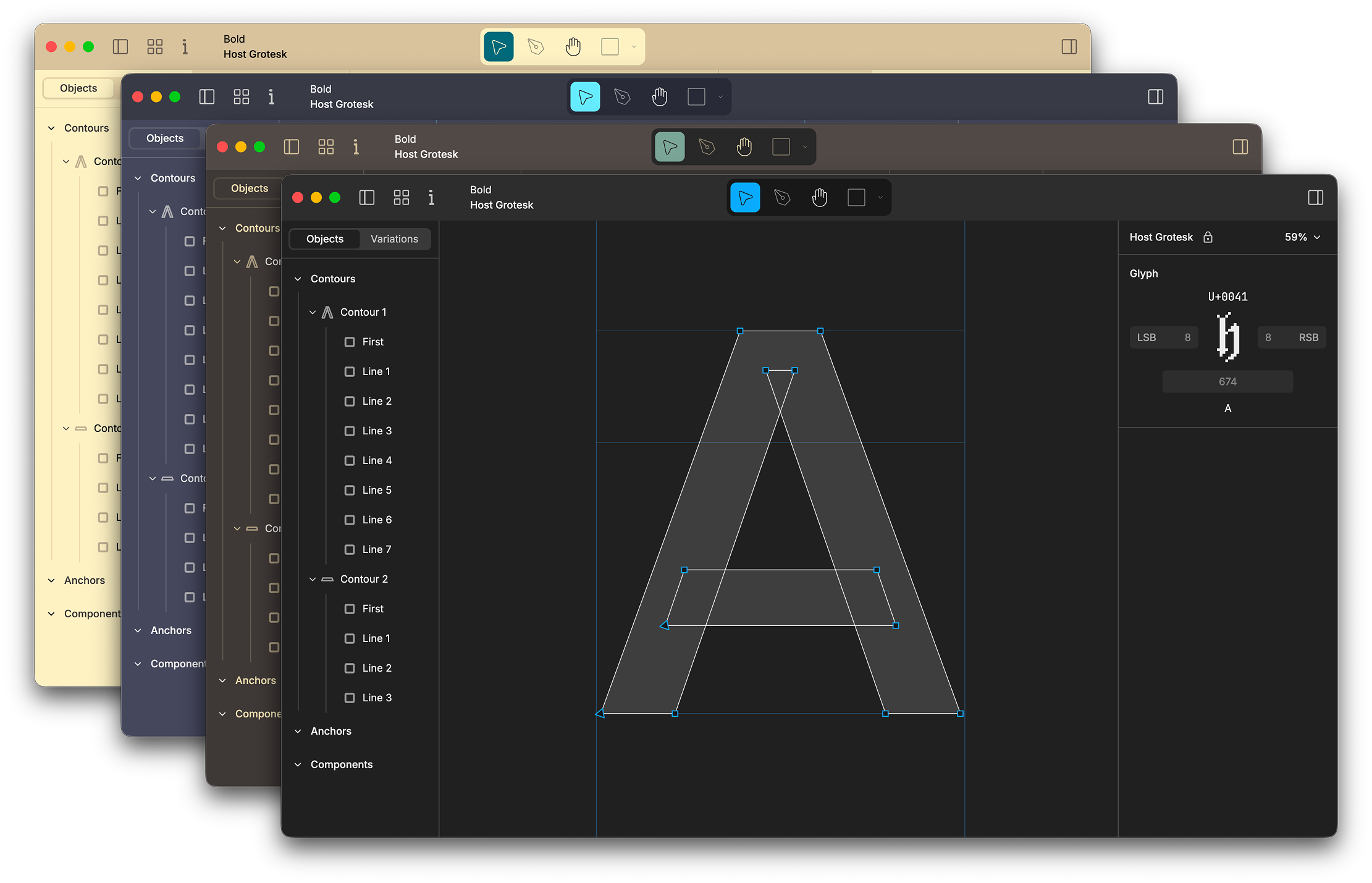
Open Settings → Appearance to choose a color theme for the application and canvas: Shift Light and Dark, Solarized, Dracula, Nord, Gruvbox, One Dark, or follow the system.
The launcher shows your recent fonts with previews rendered from the fonts themselves, in a grid or list. Each entry can be revealed on disk, have its path copied, or be removed from the list, and Locate… helps when a file has moved. File → Open Recent offers the same history from the menu.
Save and export
Use Save for new .shift documents, or Save as Shift to turn a supported read-only source preview into an independent editable copy. Shift documents keep axes, sources, layers, mappings, and named instances together as authoring data.
When you want to try the result elsewhere, choose Export TrueType and open the font in another application. Export is an output step rather than a replacement for the editable .shift source.
Known limitations
- TTF and OTF files are view-only and cannot currently be converted into editable Shift documents through the desktop app.
- Text proofing and complete spacing and kerning workflows are not available yet.
- Anchors can be moved and removed, but not yet added or renamed, and guidelines cannot be created.
- Advanced source-format features may be omitted or approximated during conversion. Some variable-font formats and compiler features remain unsupported.
- Windows release builds are unsigned, may display an operating-system warning, and do not update automatically. macOS builds update automatically; Linux builds update through the APT and DNF repositories.
Please continue working on copies and keep your original sources and independent backups.
Share feedback
The Help menu includes Report a Problem, Show Logs, and Feedback. Use them when something breaks, when a workflow feels unclear, or when you want to share what felt surprisingly good.
You can also email me directly. Try a glyph, explore a variable font, and tell me what you would reach for next.